

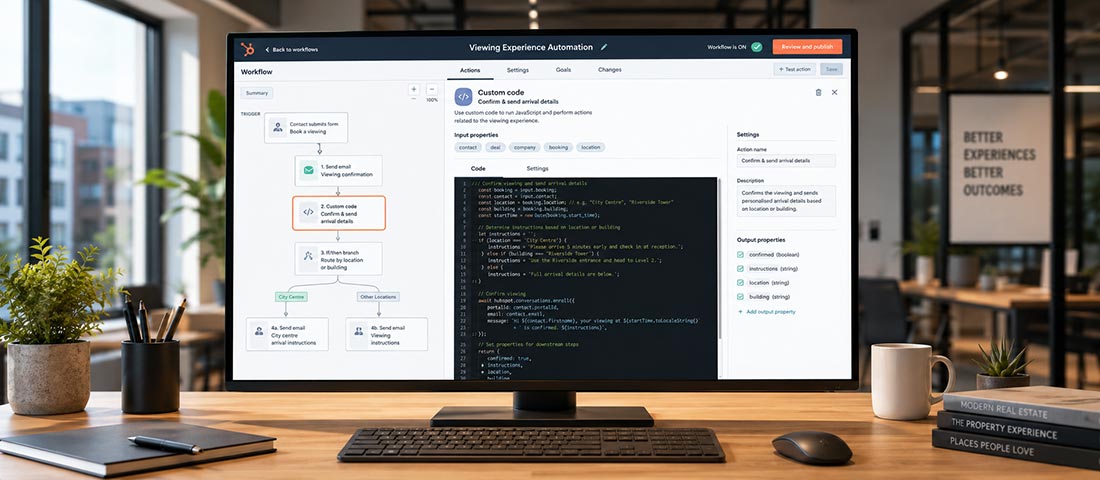
HubSpot workflows do a lot out of the box. But once you add custom code into the mix (via Data Hub Pro), you can solve problems that the standard actions just can’t.
Custom code actions let you manipulate data in ways that aren’t otherwise possible inside a workflow. That opens up cleaner data, better automation & a better experience for the people on the receiving end of your emails.
Here’s a real example of how we’ve used custom code in a HubSpot workflow to fix a small but annoying problem around meeting confirmations, & how it ended up reducing no-shows for our clients.
The problem: meeting emails that aren’t quite right
A lot of our real estate clients use HubSpot’s meeting scheduler so prospects can book property viewings. It works well. HubSpot sends confirmation & reminder emails automatically in the run-up to the meeting.
The catch is that those emails are one-to-one emails sent from the meeting host. That suits some businesses. For others, they wanted properly branded emails as well.
The data issue that got in the way
HubSpot stores the meeting date & time in a property called Date of last meeting booked in meetings tool. In the CRM, that property shows both the date & the time.
But when you drop that property into an email as a personalisation token, HubSpot only outputs the date, not the time.
So you end up with a confirmation email that says “Your viewing is booked for 27/01/2026” with no time attached. Not much of a confirmation.
We needed the date & the time, in a format that read naturally.
Step one: creating the right properties
We started by creating three new contact properties:
- Viewing date & time – a date/time property
- Viewing date – a single-line text property
- Viewing time – a single-line text property
The workflow was triggered when a specific meeting scheduler was submitted.
The first action just copied the value across:
- Copy Date of last meeting booked in meetings tool
- Into Viewing date & time
Even though both are date/time properties, the new property does output both date & time when used as a personalisation token. That sorted part of the problem on its own.
But the format still wasn’t great:
27/01/2026 14:30 GMT+1
Accurate, but not how you’d write it in an email to a customer.
Step two: using custom code to tidy up the format
This is where custom code does the heavy lifting.
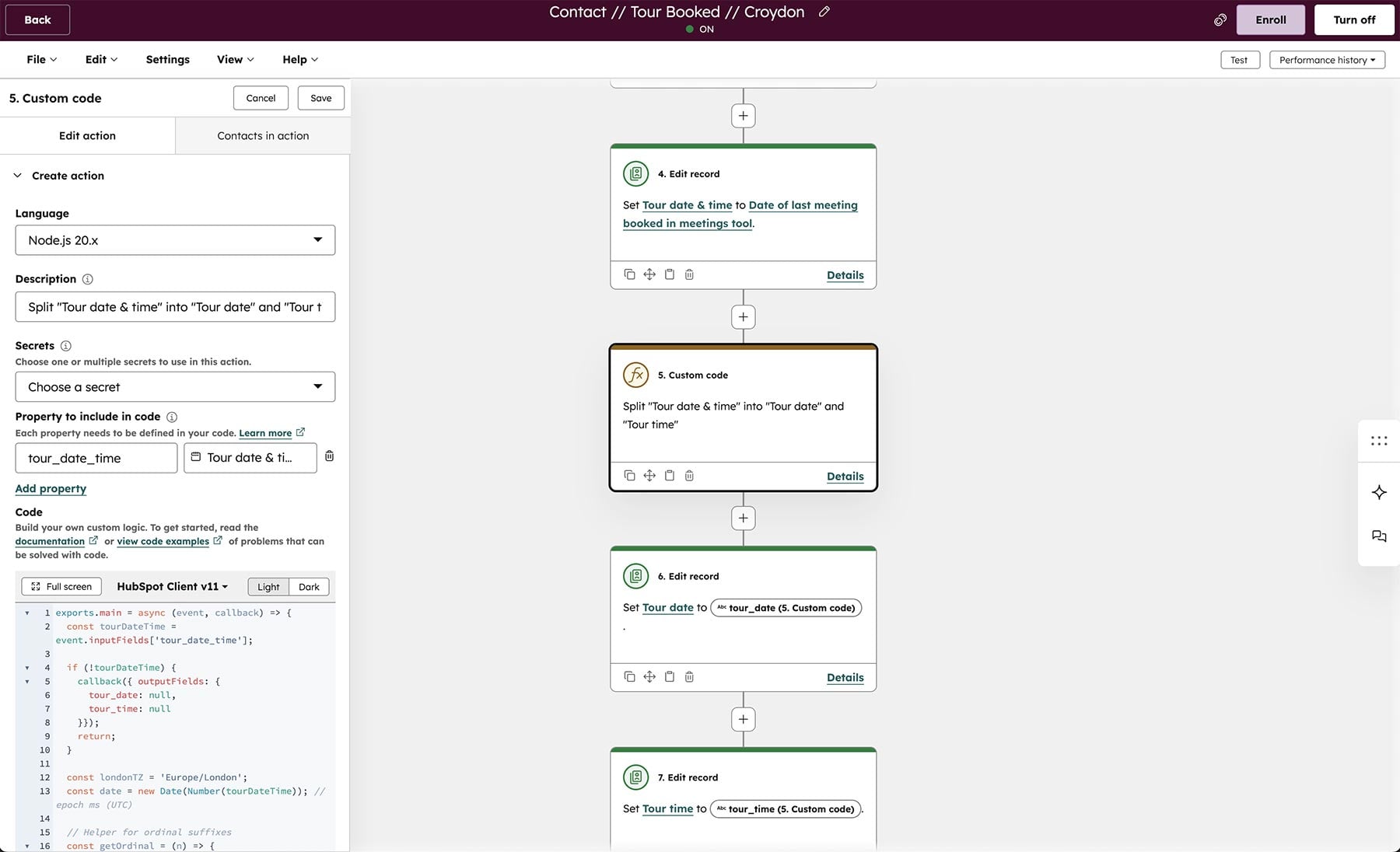
We added a custom code action that:
- Took the value from Viewing date & time
- Split it into separate date & time components
- Reformatted each one
So:
- 27/01/2026 became 27th January
- 14:30 GMT+1 became 2:30pm
Those values were saved into:
- Viewing date
- Viewing time
Now we had readable data that could be dropped straight into a marketing email.
Step three: pre- & post-viewing emails
With those properties in place, the rest of the workflow was straightforward.
Pre-viewing email
Once the meeting was booked, the workflow sent a branded marketing email that:
- Thanked the contact for booking their viewing
- Confirmed the date & time using the new properties
- Included arrival instructions
- Linked out to Google Maps
- Set out what would happen next
Post-viewing follow-up
We then added a delay until three hours after the viewing start time, which works out at roughly two hours after the viewing ends.
At that point, a second marketing email went out:
- Thanking the contact for attending
- Confirming next steps
- Keeping the conversation going beyond the appointment itself
All of it ran automatically, without anyone on the team having to remember to send a follow-up.
The outcome
Clients who put this in place saw:
- A more consistent brand experience around viewings
- Clearer communication for customers
- Fewer no-shows
Final thoughts
Custom code in HubSpot workflows isn’t about overcomplicating things. It’s about filling in the gaps where the standard tools stop just short.
If you’re on Data Hub Pro & you haven’t looked at custom code actions yet, it’s worth a look. Pick one problem, build one workflow & see where it gets you.
If you’d like a hand setting something similar up, get in touch.